How to Scan a Document to PDF on an Android Phone

You can scan a document to PDF on an Android phone with a document-scanning app or a camera feature that supports scanning. Place the paper on a flat, well-lit surface, capture each page, check the crop and readability, then save or export the result as a PDF. These steps help you create a file that is clear and easy to share.
Prepare your document and phone
A little preparation makes the scan easier to read and reduces the chance that you will need to start again. Choose a flat surface with a background that contrasts with the paper. For example, place a white form on a dark desk rather than on a white table where its edges may be hard to distinguish.
- Flatten curled corners and remove clips or other objects covering the page.
- Wipe the phone camera lens gently with a clean, soft cloth.
- Use bright, even light, such as daylight near a window.
- Keep your phone charged if you are scanning several pages.
- Decide where you will save the finished PDF before you begin.
Avoid placing the page directly under a harsh light that creates a bright reflection. If you are scanning a glossy certificate or laminated card, shift the light or paper slightly until the glare moves away from the text. Keep drinks and food away from important documents, especially originals that cannot be replaced.
Check whether all pages are present and in the right order. If you are scanning a form with writing on both sides, plan to capture each side and check that no information has been missed. For a one-page receipt, remove nearby papers so the scanner can focus on the correct sheet.
Scan the page and create a PDF
Android phones and scanning tools can differ, so the exact controls may not look the same. The general process is consistent: choose a scanning option, capture the paper, review the image and save it in PDF format. A camera app may offer a document-scanning mode; if yours does not, use a trusted document-scanning app.
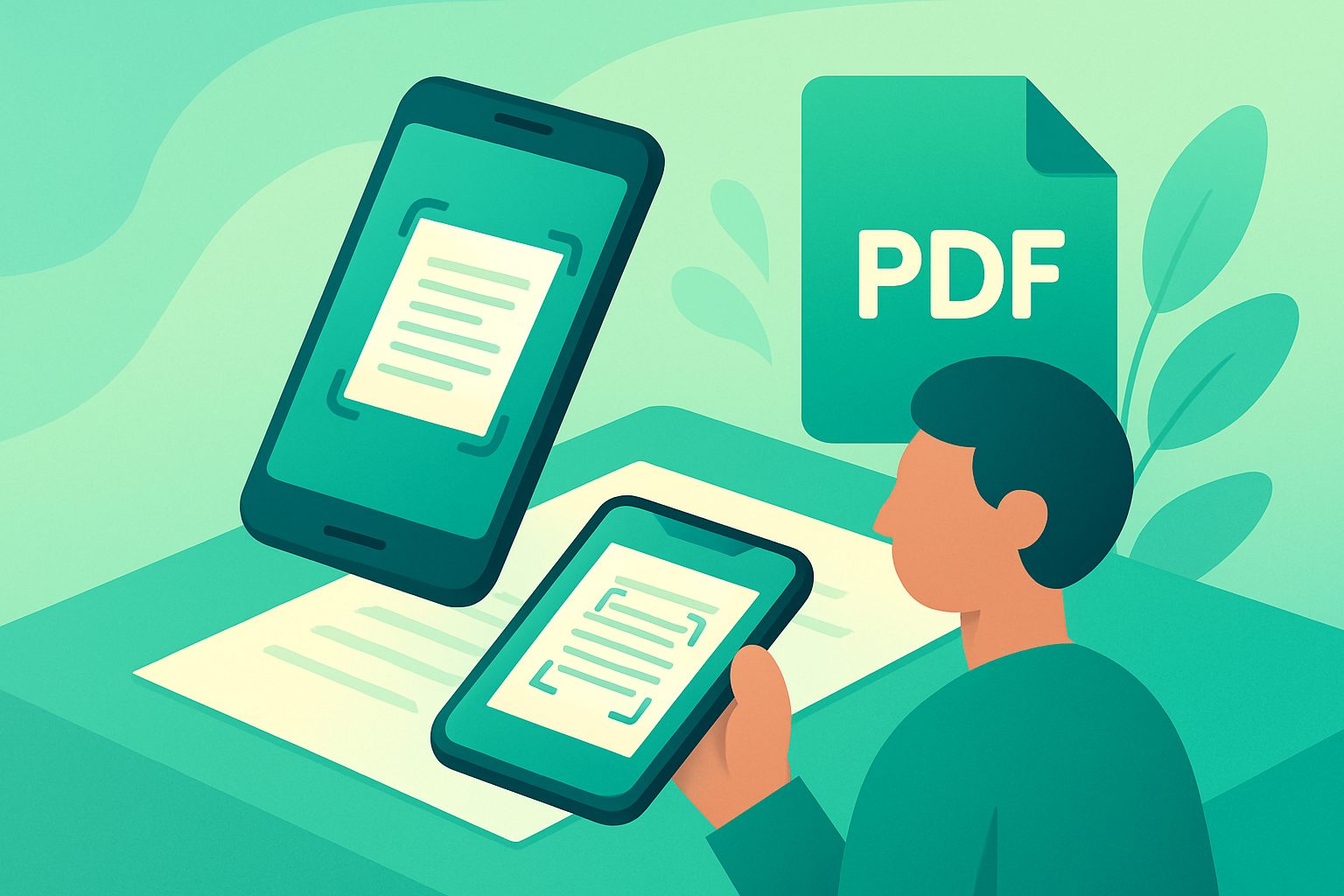
- Open a scanning tool and choose its document-scan option, if available.
- Place the paper flat and hold the phone above it, with the page inside the camera view.
- Capture the page, either with the tool’s automatic detection or its manual capture control.
- Review the suggested page edges and adjust the crop if any text is cut off.
- Choose PDF as the output format when saving or exporting the scan.
For a dedicated Android scanner app, NIT Scanner is one option with a scan-to-PDF feature. As with any tool, check the final page rather than assuming the first capture is ready to send.
Keep the phone parallel to the paper where possible. If it tilts, the page may look narrower at one end. For example, when scanning an application form, align the phone over the centre and check that its printed boxes remain rectangular in the resulting image.
Improve clarity, lighting and page alignment
A PDF can be technically complete but still difficult to use if the text is blurred, shadowed or clipped. Before capturing, steady your hands and make sure the whole sheet is visible. If your tool indicates that it has detected the page edges, compare those edges with the actual paper, particularly around faint margins or printed borders.
- Move closer only enough to fill the view; do not cut off page corners.
- Turn off a nearby light if it creates a shadow from your hand or phone.
- Try a different angle or position if glare hides a signature or printed line.
- Tap the page or text area to focus if your camera supports touch focus.
- Retake the image if small letters look soft when you zoom in to review.
For example, a bank statement with light grey text may need more even light than a bold, black-and-white notice. A paper with a dark border can also confuse automatic cropping, so check that the crop includes the whole border and does not remove a date or account detail near the edge.
Do not use a filter simply because it makes the page look brighter. A strong effect can erase pale handwriting, stamps or coloured marks. If the PDF is meant for an office, school or government submission, preserve the original content and follow any stated requirements for colour, page size or legibility.
Scan multiple pages and review the finished file
For a multi-page document, capture every page in sequence and check the order before you save. Many scanning tools let you add more than one page to the same document, but the way to do this varies. If your tool creates a separate file for each capture, look for a general option to combine pages or use a PDF merge tool afterwards.

- Start with the first page and continue in the document’s reading order.
- After each capture, check that the page is complete and readable.
- For double-sided paperwork, include the reverse side when it contains information.
- Before saving, review the page count and move or remove pages if the tool allows it.
- Open the finished PDF and inspect the first, middle and final pages.
Imagine scanning a four-page rental agreement. Check that the signature page is included, that no page is upside down and that the agreement’s pages appear in the same order as the original. A quick review can prevent sending a file with a missing page or an extra capture of your desk.
Choose a descriptive filename, such as Rental-agreement-October-2026.pdf or Science-assignment-pages-1-to-3.pdf. Use a name that helps you recognise the document without exposing unnecessary personal details. Save it in a folder you can find again, and open it once to confirm the PDF works before sharing it.
Fix common scanning and PDF problems
If the PDF looks unclear, identify the problem before taking another scan. A blurry page often means the phone moved or the camera did not focus. A dark patch may be a shadow, while a missing line at the edge usually points to an incorrect crop. Correcting the cause is more useful than repeatedly capturing the same page in the same conditions.
- Blurry text: Hold the phone steady, improve the light and retake the page.
- Cut-off content: Recheck the page outline and include a small margin around the paper.
- Uneven brightness: Move the light source or reposition the document to soften shadows.
- Wrong page order: Compare the PDF with the paper stack and rearrange pages if supported.
- PDF will not send: Check the file size and connection, then try a suitable sharing method.
Some tools offer PDF compression, which can help when a scan is too large to send or upload. Compression may affect image detail, so review the result before using it for small print, stamps or handwritten notes. If readability drops, keep the clearer original or make a less aggressive compressed copy.
For private documents, share only with the intended recipient and use a trusted channel. Avoid leaving scans in a public or shared folder by mistake. If a form includes identity, health or financial details, double-check the recipient and the attachment before you send it.
Frequently Asked Questions
Can I scan a document to PDF without a scanner?
Yes. An Android phone camera can capture a paper document, and a scanning tool can turn the capture into a PDF. Use a flat surface, good lighting and a careful crop. A regular photo is not automatically a PDF, so check the output format when you save or export.
Can I scan several pages into one PDF?
Often, yes. Some scanning tools let you add multiple captures to one document. If yours saves pages separately, you can use a PDF merge feature to combine them. Review the page order and confirm that both sides are included when the reverse contains relevant information.
Why does my scanned PDF look blurry?
Common causes include camera movement, poor focus, low light or glare. Clean the lens, steady the phone and make sure the text is in focus before capture. Review a small section at higher magnification; if letters remain soft, retake the page under better conditions.
How can I make a scanned PDF smaller?
A PDF compression tool may reduce the file size, though the amount depends on the document and settings. Check the compressed copy before sharing it. If small print or handwriting becomes hard to read, use the original or choose a less compressed version.
To scan a document to PDF on an Android phone, prepare the paper, capture each page in good light, review the crop and save the result as a PDF. Open the finished file to check its order and readability before sharing. A careful final check takes little time and helps you avoid sending an incomplete scan.